Journal entries
What Journal entries is for
Every figure in statycs is a sum of postings. Journal entries opens that sum: it lets you go from a number on a statement to the individual lines that produced it, search across all accounts at once, group by counterparty, and let statycs check the ledger for postings that look like mistakes.
It is part of statycs rather than a separate module, and uploading journal entries is what unlocks it. Connect a feed or upload a file for a company, and the drill-down, the Entries tab, and the settings page appear together.
TL;DR
Upload journal entries for the periods you want to open up — they take the place of a trial balance for those periods. Then double-click a level 2, account group or account row in Financials to see the postings behind it, use Analysis → Entries to search across accounts, and use Data → Journal entries to decide what statycs flags automatically and which positions stay confidential.
What Journal entries needs
A period is sourced either from a trial balance or from journal entries — never both. Where you upload journals, they take the place of the trial balance for those periods, and the figures on your statements become the sum of their own postings by construction.
That is what makes the drill-down trustworthy: there are not two sources for one number, so there is nothing to reconcile and the drawer can never disagree with the cell you opened.
Switching a company from one source to the other is possible, and statycs asks first: uploading a trial balance over journal months deletes the imported entries and the actuals derived from them, and the confirmation says so before anything is written.
A range can span both kinds
Journal coverage is tracked per month, and it is usually shorter than trial-balance coverage. A year-to-date range crossing a trial-balance January and a journal June opens only on the journal months — the earlier cells are outside journal coverage, not broken.
The template
Use the journal entry template offered in Data → Upload. It is a fourteen-column sheet in your own language, and two things decide whether the numbers come out right:
- One fiscal year per file, starting on the first day of that year. A year in progress is fine — upload it again as it grows.
- Include your opening balances — the carry-forward postings dated the first day of the year (DATEV: Saldenvorträge). Without them, every balance sheet figure shows the year’s movement instead of the balance.
Six columns are required — the teal ones on the sheet:
Entry date · Account number · Account name · Description · Amount (net) · Counterparty name
One row per posting line, using + for debit and − for credit, net of VAT — the same sign convention as the trial balance template.
The other eight columns are optional, and each one buys something:
| Column | What it buys you |
|---|---|
| Counterparty ID | Your ERP’s own customer or supplier number (DATEV Personenkonto, SAF-T CustomerID) |
| Document no. | The strongest duplicate check — two postings sharing a document number |
| Invoice link | Turns the Invoice column into a link instead of plain text |
| Department | Maps postings to cost centers, for use with the Departments add-on |
| Project | Tags a posting to a project or cost object, which is what the Projects overview is built from |
| Tax amount | Stops a VAT rate change reading as a cost change |
| Entry type | OPENING marks carry-forward rows so the checks skip them |
| Journal ID | Groups the legs of one booking, so a finding is raised once per entry rather than once per line |
Uploading an export instead of the template
You do not have to use the template. Upload your ledger’s own export and, the first time statycs meets a layout it does not recognize, it asks you to match your columns — once. Each required field gets a column from your file, sample values are shown beside each choice, and anything you leave unmapped is kept on the entry and shown in the drawer rather than discarded.
The mapping is then reused automatically for every later upload of that layout. It is shared across the whole organization, so one mapping serves every company that exports the same way — which also means editing it changes what all of them import. Saved mappings are listed on Data, under the company overview, as Journal entry column mappings, where an admin can open one and change a binding. A change affects the next upload; entries already imported keep the columns they were read with.
Where journal entries appear
Journal entries adds three surfaces.
1 · Drill-down from a Financials cell
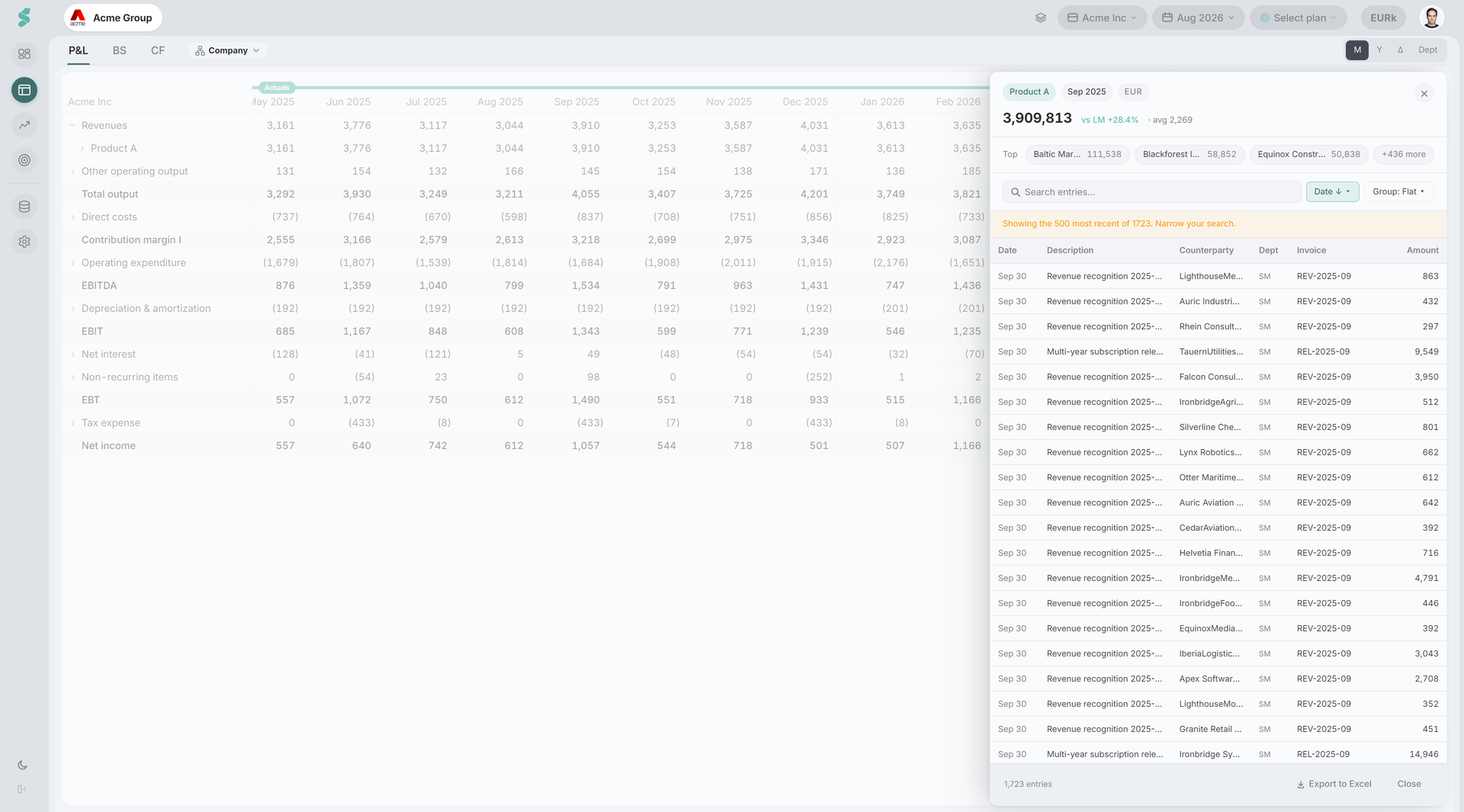
In Financials, double-click a level 2, account group or account row — or right-click it and choose View journal entries — to open a drawer holding the postings behind that cell.
Three views drill:
- Monthly — any actuals month column.
- Comparison (Δ) — the two actuals value columns. The variance and percentage columns do not open: a variance is a difference between two numbers, not a set of postings. The compare column does not open either — on a plan base there are no postings at all, and on a prior-year base the drawer would list this year’s entries under last year’s figure.
- Departments — a department column, which is that account’s postings for that department over the view’s window. The pinned Total column does not open: it is the company figure, reachable from the monthly view instead.
Yearly does not drill. A yearly balance sheet cell is the December closing balance rather than a twelve-month sum, so a yearly drill would have to be flow-only.
Rows above level 2 do not open. At that height the cell aggregates far more than the drawer can show — Direct costs year-to-date on a real set of books runs to over 1,500 postings against a 500-row page — so the affordance is absent rather than offered and refused. Cash flow never opens either: it has no account dimension and is derived from balance-sheet movements and the P&L, so nothing is ever posted to it. A consolidated group statement does not open, because the figure belongs to no single company’s ledger.
Where a cell cannot be opened, there is no affordance at all rather than a control that refuses. The one exception is a confidential position: attempting the drill tells you it is confidential, because someone who could open that cell last week would otherwise read a missing affordance as a bug.
The drawer carries:
- A headline figure. On the P&L it is the value of the cell you opened, and it does not change when you filter or page. On the balance sheet it is the movement in that period — the number the list of postings actually explains, since a closing balance is not a sum of the month’s entries. An FX residual is named as FX revaluation on its own line rather than left as an unexplained difference.
- A Top strip with the three largest counterparties in the cell, and a +N chip that switches to grouping by counterparty.
- A search box with match case and match whole word, a sort menu (date, amount, counterparty, department — each ascending or descending), and grouping by counterparty, week or department. Department sorting and grouping appear only with the Departments add-on.
- An Excel export of exactly what is on screen, in the order shown.
- A Not yet closed pill when the month is still open, because the entries are incomplete and will change.
- Copy link to this cell — a deep link that reopens the same drawer in place, inside the app. It carries no department scope: the recipient sees the cell through their own access, which is the only correct answer.
The drawer loads up to 500 postings at a time. Above that it says so, and suggests narrowing the search or grouping instead.
2 · Analysis → Entries
The Entries tab is the cross-account view. Where the drawer answers “what is in this cell”, the Entries tab answers “where in the whole ledger is this”.
3 · Data → Journal entries
An admin-only page with two cards:
- Automatic checks — which checks run and how sensitive the record thresholds are.
- Confidential positions — which positions and accounts hide their detail from non-admins.
Nothing on that page is written as you click it. Both cards share one draft, and a bar appears saying You have unconfirmed changes with Confirm changes and Discard changes. See Automatic checks for why.
The Entries tab
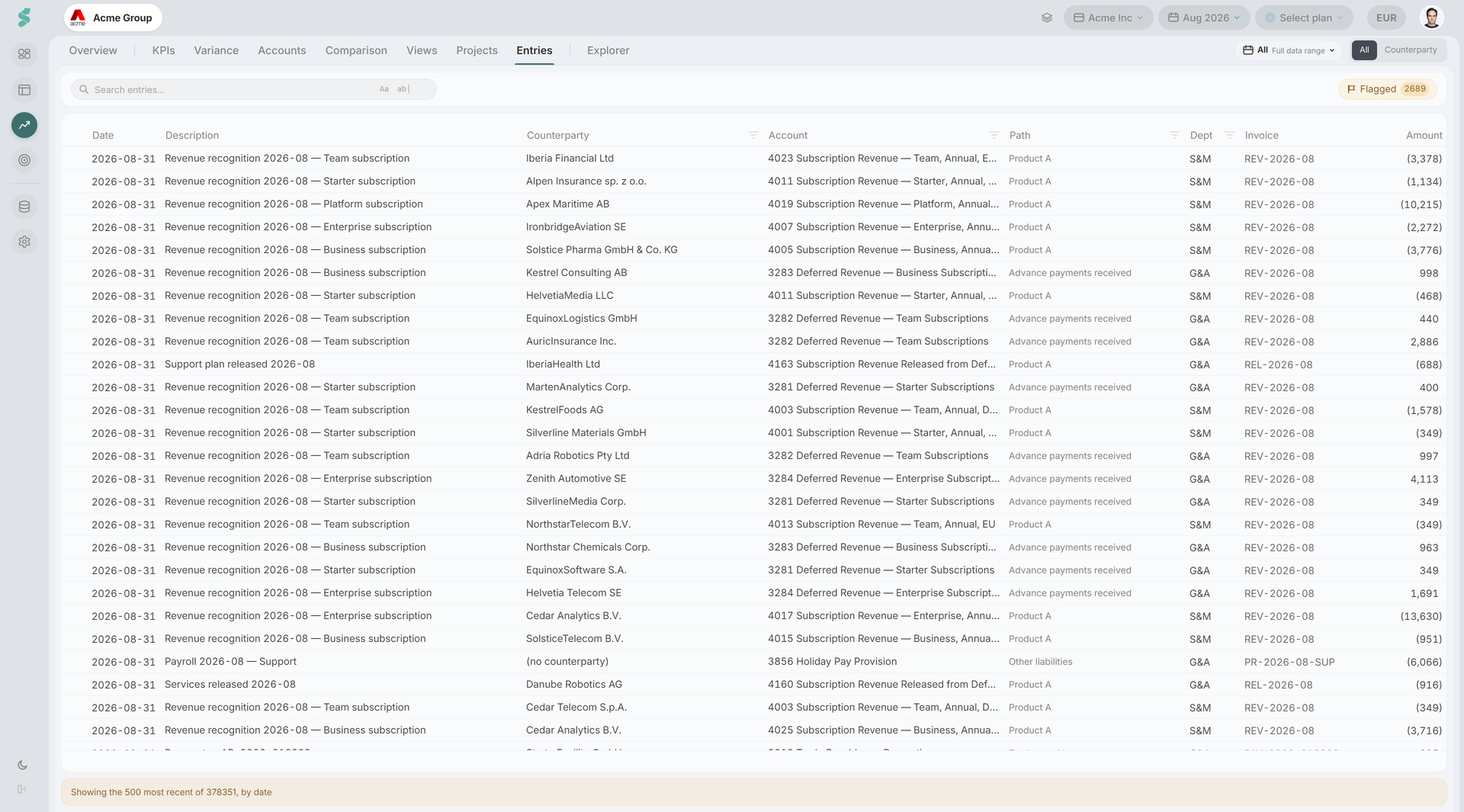
One grid in three configurations, over a date range you choose:
- All — every posting in the window, capped, most recent first.
- Counterparty — the same population aggregated per party. See Counterparties.
- Flagged — the same grid with the reason filter pre-applied. The toolbar pill carries a count of the open findings in the window. See Automatic checks and Flags & comments.
Range
The range pill carries the usual presets. It is clamped to the months you actually have entries for — journal coverage is often shorter than trial-balance coverage, so a range that reaches past your first upload is pulled back rather than returning an empty grid.
Columns
Date · Path · Account · Description · Counterparty · Invoice · Dept · Amount, with Reason and Evidence added in the flagged view.
- Path is the breadcrumb through your financial statement design, down to level 2. Filter it as a set, so picking EBITDA → Other opex takes every account underneath it. It is derived when the row is read, never stamped on the posting, so it follows any change you make to the statement design.
- Invoice is a link when the feed carries a document URL and plain text when it does not — which for DATEV exports is always, since the ledger holds a document number and the document itself lives in a DMS.
- Dept appears only when the Departments add-on is active.
- Amount is shown at the raw ledger sign — debit positive, credit negative — which is the convention a journal export uses. It is not flipped to statement presentation.
Any column of your export that statycs did not map is kept on the entry and can be shown here too. Hide the columns you do not need from the Columns menu, in the grid’s right-click menu; the choice is remembered.
Search, filters, and the total
Filters live in the column headers and count into a single Clear filters (N) badge next to the search box, so there is one place to see how narrowed the view is and one click to undo it. A column filter commits on its Apply button rather than on each tick, because these filters run on the server and reach the whole ledger rather than only the loaded page. Selecting rows shows a running sum of the selection.
The footer states the population honestly: the number of postings, whether the list is capped (“Showing the N most recent of M, by date”), and how many of the automatic checks could run over this range.
Export
Export to Excel from the grid’s right-click menu writes journal-entries.xlsx with the columns, order, and filtering currently on screen. Dates are written as real Excel date cells so recipients can sort and pivot on them, and amounts export at full scale regardless of the thousands/millions view you are using.
Confidentiality and access
Two different mechanisms limit what a person sees, and it is worth keeping them apart:
- Department scope (from the Departments add-on). A user granted only some departments cannot open the Entries tab at all — it says so and points them at an administrator. The reason is that a counterparty total or an account aggregate computed across departments they may not see would disclose without ever rendering a row, so the section is refused rather than partially answered. The Financials drill-down still works within their scope.
- Confidential positions hides the detail behind specific positions and accounts from non-admins, while leaving the totals on the statements untouched.
Confidential positions is not a permissions model
It keeps salaries off a shared screen, and the server withholds those postings rather than merely hiding them on screen. It is still not access control and not a substitute for one.
Related
- Automatic checks — the catalogue of checks and how to tune them
- Flags & comments — raising, resolving, and dismissing findings
- Counterparties — the counterparty card and merging spellings
- Confidential positions — hiding detail from non-admins
- Financials — where the cell drill-down starts
- Data management — uploads, templates, and coverage