Notes
What Notes is for
Notes are small, in-place annotations attached directly to a number — a single cell in Financials. They answer the “why does this look like that?” question right where the number lives, so context never gets stranded in a separate doc.
Notes complement, but don’t replace, the longer-form Commentary layer. Use Notes for tactical, point-of-the-number remarks; use Commentary for narrative around a whole period.
For row-level notes inside Planning, see Planning notes.
TL;DR
Click the note indicator on a Financials cell to open a plain-text popup. Notes save automatically to your statycs account and are shared with your whole team, on any device.
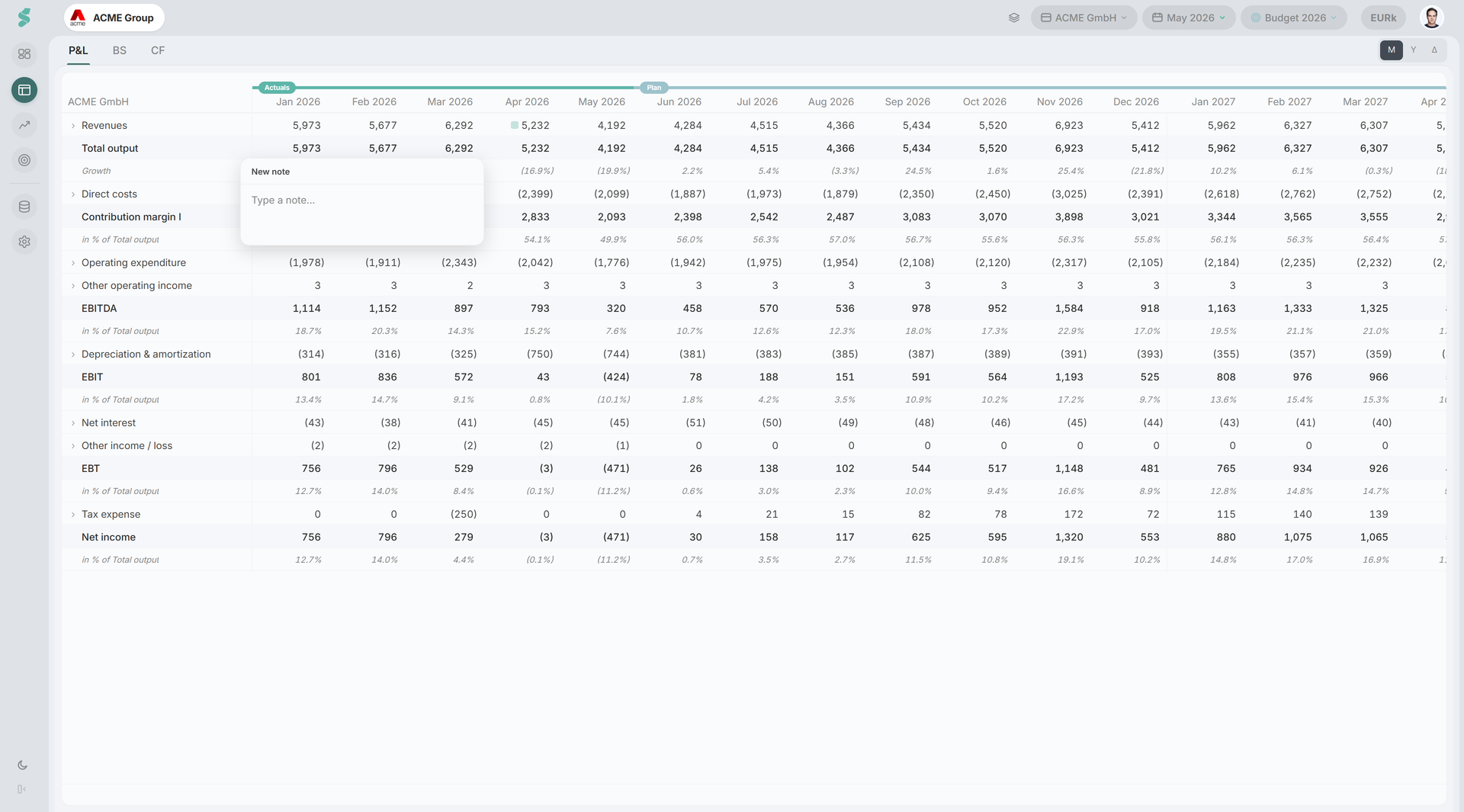
How cell notes work
A cell note is anchored to a specific row × period in any of the three statements (P&L, Balance Sheet, Cash Flow). Examples: “Marketing → 2026-03”, “Receivables → 2026-Q1”.
A small icon on the cell indicates that a note exists. Hover the icon for a quick preview tooltip; click it (or use the cell menu) to open the note popup.
The popup is a plain-text editor with a single save: typing auto-saves with a short debounce, and closing the popup commits any pending edit. A trash button on existing notes deletes them. Press Esc to close, Enter to close-and-save, Shift+Enter for a newline.
Note elements
The indicator
A subtle icon on the cell signals presence. It’s intentionally low-contrast so it never competes with the numbers — you see notes when you’re looking for them, not before. Cells without notes show no indicator at all.
The popup
The popup floats next to the icon and flips above when there isn’t room below. Header shows the author and last-updated timestamp; new notes show “New note” until the first save. The editor is plain text — no formatting, no embeds — keeping the artefact small and durable.
Persistence and scope
Cell notes key on {company} × {row} × {period}. Moving last actuals does not move or hide existing cell notes — the period anchor is absolute. When you’re viewing a specific department, a note is scoped to that department; the company-level view keeps its own notes.
Notes are saved to your statycs account — not to your browser — and are shared across the company: everyone who can see the cell sees the same note, on any device. Edits sync automatically, and two people annotating different cells never overwrite each other.
Visibility and roles
Notes are visible to anyone who can read the cell they’re attached to — they inherit role gating from the parent data. A viewer who cannot see the underlying P&L line will not see its notes either. Guests who have access to a published Dashboard but not Financials will not see any cell notes.
What Notes is not
Notes is deliberately minimal. There are no @mentions, no threads, no attachments, no read receipts, and no per-note permissions. For richer commentary that flows into reports and gets published per period, use Commentary instead.
Related
- Financials — the surface for cell notes
- Planning notes — the row-level equivalent inside Planning
- Commentary — longer-form narrative that complements Notes