Planning Methods
What planning methods are for
A planning method tells statycs how a row’s monthly values are computed. statycs ships six methods covering the full range from manual data entry to fully formula-driven rows. Anything more specialised — DSO, tax accruals, interest — is built on top of the Formula method via the in-app formula templates picker.
TL;DR
Six methods: Manual, Manual change, Monthly growth, Annual growth, % of account, and Formula. Specialised patterns (DSO / DPO / DIO, Tax, Interest) are templates that pre-fill a Formula row.
How methods are applied
You plan Level 2 positions only for both P&L and Balance Sheet — higher levels (L1, Subtotals, Totals) are roll-ups and have no method. A method is attached to each editable L2 row and stored with the plan.
The available methods on a row depend on its L1 anchor. A few L2 positions are calculated, not planned — Cash & equivalents, Retained earnings, and P&L carryforward are derived and have no method picker.
New positions start with no method assigned — the row label reads Choose method until you pick one. EURk cells divide the stored EUR value by 1000 on display and multiply back on save.
Methods can only be changed in a draft plan; active plans are read-only.
The six methods
Manual
Type values directly per month. Copy/paste and range edits work as expected. Use it for irregulars and overrides.
Manual change
Enter month-over-month deltas instead of absolute values. statycs adds each delta to the prior month, starting from a base value (the last actual value, with a quick-fill helper — see below). Useful for BS movements where the change is more natural than the stock figure.
Monthly growth
Compounds the previous month by a monthly rate. Each month’s rate can differ. The base value is the last actual; use the quick-fill helper to seed it. Use for steady trend lines.
Annual growth
One annual rate per plan year, distributed across months by a seasonality profile. Profiles: Spread evenly (1/12 per month), Last 12 months (mirrors the prior twelve months of actuals), or Custom (a 12-slot draft editor where the December slot is auto-balanced so the year sums to 100%). Open via the seasonality icon next to the rate.
% of account
The row’s value = a percentage × another row’s value (a position or an account). Pick the reference once; enter percentages per month. Yearly view averages percentages, sums absolutes.
Formula
Write a custom formula in the formula editor. Supports + − × ÷ ^, parentheses, functions (abs, min, max), and references to other rows, drivers, and sub-positions — each reference with an optional time offset (like month(-1)) and an optional trailing-window aggregation (Sum / Average over the last 3, 6, or 12 months). See formula syntax.
Formula rows can have helper sub-positions — extra lines that hold building blocks of the formula (e.g. price, volume, headcount, FTE cost). Helpers feed the formula but do not roll up to the parent L2; only the formula’s computed result contributes to the L2 total. This is what makes them distinct from planning positions (added via the + on an L2), which are independent lines that do roll up.
Use planning positions when you want to break the L2 into independently-summed lines; use formula helpers when you want to expose the inputs of a single computed line.
Formula templates
Templates are pre-built formulas you pick from a picker after choosing the Formula method. They auto-create the helper sub-positions you need and pre-fill references where possible. Suggested templates depend on the L1 anchor of the row.
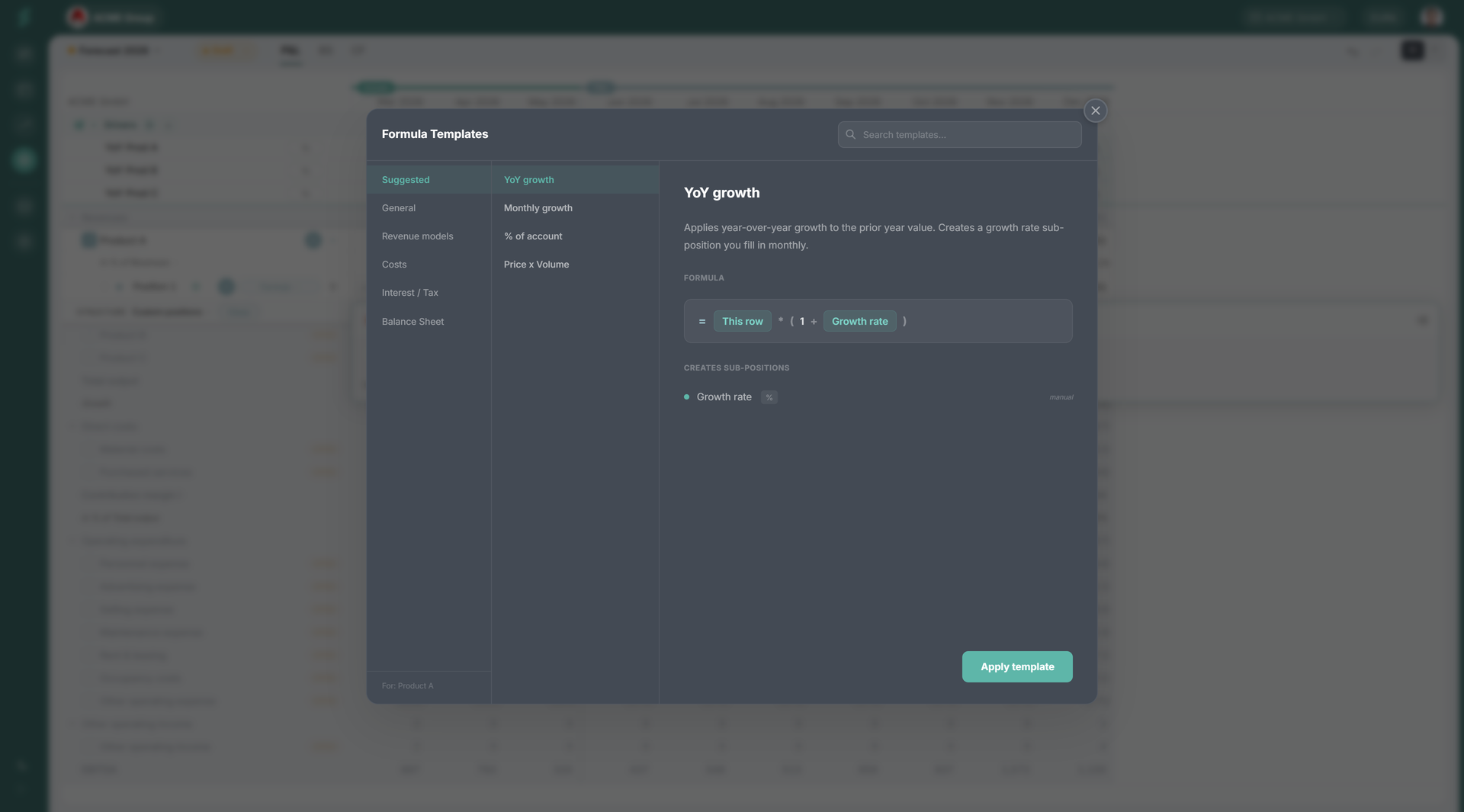
The picker is grouped into five categories:
- General — YoY growth, monthly growth, % of account.
- Revenue models — Price × Volume, SaaS MRR (simple / funnel / sales capacity), metric-based (usage), services (billable hours), rent / leasing, ecommerce.
- Costs — FTE × all-in cost, inflation adjustment.
- Interest / Tax — Interest on cash; Tax monthly / quarterly / semi-annual / annual (with payment-schedule booleans).
- Balance Sheet — DSO, DPO, DIO.
Open the picker on any Formula row to browse the full catalogue with formulas, parameters, and suggested use cases.
Common BS templates
A few templates show up in almost every Balance Sheet plan:
- DSO — Trade receivables =
Revenues / 30 × DSO days(revenue reference is pre-filled to the Level 1 Revenues row). - DPO — Trade payables =
Direct costs / 30 × DPO days(the cost reference is pre-filled to the Level 1 Direct costs row). - DIO — Inventory =
Direct costs / 30 × DIO days(the cost reference is pre-filled to the Level 1 Direct costs row).
Common P&L templates
- Interest on cash — monthly interest income = cash balance × annual rate / 12.
- Tax — Tax expense = (EBT + tax adjustment) × tax rate, with payment-schedule booleans on the cash variants (quarterly / semi-annual / annual) that accumulate monthly charges into the payment month.
Quick-fill helper
For methods that take a base value (Manual change, Monthly growth, Annual growth), each position exposes a small helper that fills the base from the row’s actuals. Click the helper to pick:
- Last month — the most recent actual.
- Avg. last 3 months
- Avg. last 6 months
- Avg. last 12 months
Use it as a starting point; you can always type a different base afterwards.
Plan structure modes
Each L2 row in edit mode picks a structure mode for how positions are organised:
- Custom positions (default) — free-form lines you add and rename yourself.
- Account groups — positions mirror the company’s account groups under the L2.
- Accounts — positions mirror the individual accounts under the L2.
- D&A / Capex — replaces the position editor with the capex / asset-sale / useful-life input grid; depreciation and the BS / CF roll-up are derived from those entries.
The account-driven modes anchor the plan structure to the chart of accounts so it stays in sync as actuals come in. D&A / Capex is preselected on fixed-asset L2 rows (Intangible assets, PPE, …) since that’s almost always what you want there — switch it via the same structure picker if you’d rather plan one of those rows with custom positions or against accounts.
Notes on behaviour
- Methods compute values; they don’t change actuals.
- Sub-positions only exist on Formula rows and are calculation helpers — they don’t roll up to the L2 directly.
- Validation is continuous: formula errors and broken references surface in the sub-navigation; click to jump to the row.
- Switching a row’s method preserves the value where possible; statycs warns before discarding inputs that the new method can’t represent.
- Formula circular-reference detection is shallow: a position that references itself is flagged immediately, but transitive cycles (A → B → A across positions) are not detected today.