Departments
What the Departments add-on is for
The Departments add-on lets you cut the P&L by department or cost centre — to see what production, sales, R&D, or any cost centre you care about earns and spends, plan per-department, and scope user access by department. It is a paid org-wide add-on.
TL;DR
Activate in Settings → Billing, then use the page to do two things: map your raw cost centres (and individual P&L accounts) to org departments, and plan per-department in the Planning workspace. P&L only — BS / CF stay central.
How Departments work
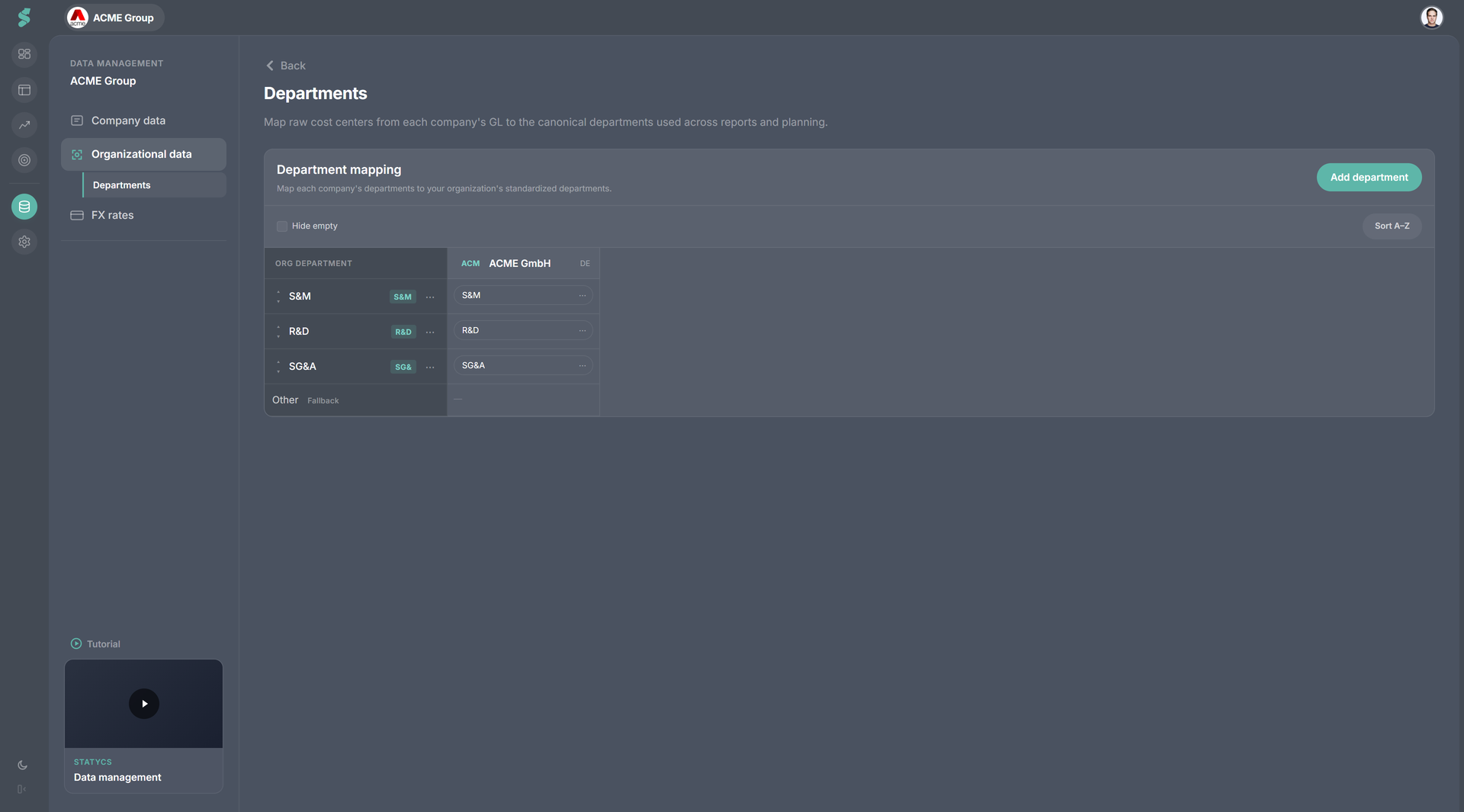
Activating the add-on adds a department dimension to the org. Each company in your org carries a list of raw cost centres from its GL; you map those to a small list of org departments that span every company. Once mapped, departments appear as a fourth dimension across Financials, Planning, and the user-access model.
Departments are P&L only by design. The Balance Sheet and Cash Flow stay central — debt, equity, working capital, and cash don’t decompose to a department in any meaningful way. Activate the add-on from Settings → Billing; deactivating from the same place keeps access until the renewal date.
The add-on splits into two main areas of work:
- Data mapping & overrides — set up which raw cost centres roll into which org department, and route individual P&L accounts differently per department where needed.
- Department planning — flag a plan as Plan by departments, edit per-department slices, and let the scope pill drive the same dept slicing in Financials.
User scope
In Settings → Users, a non-admin user can be limited to a subset of departments. The user’s row carries a single chip:
- All departments — full access (the default).
- Production — single department.
- N of M — multiple departments out of the total.
Click the chip to open the popover and tick the departments the user should see. The same chip pattern is used for Companies scope on the same page. Admins always see every department; the chip is locked on admin rows.
A scoped user only sees Financials, Planning, and Settings in the sidebar — Dashboard, Analysis, and Data are hidden. Settings is restricted to the Profile tab so the user can update their own details. In Financials they only see the P&L (BS / CF hidden), and the scope pill is locked to their assigned departments with an amber lock icon.
Related
- Data mapping & overrides — matrix and per-account overrides
- Department planning — plan-by-departments and dept-scope behaviour
- Settings — Billing tab to activate, Users tab for per-user scope