Plan Import / Export
What Plan Import / Export is for
When you’d rather plan in Excel — or hand a template to a controller, dept lead, or subsidiary — statycs generates a fully structured workbook from your FSD, lets you fill it offline, and parses it back into a plan on import. The on-disk schema is shared between generator and parser so the round-trip is lossless for input rows.
TL;DR
Choose a mode (total, or by-dept with the Departments add-on), pick the period, download the .xlsx, fill the blue input cells, then re-import. L1 totals are SUM formulas; Cash & equivalents, Retained earnings, and P&L carryforward stay locked.
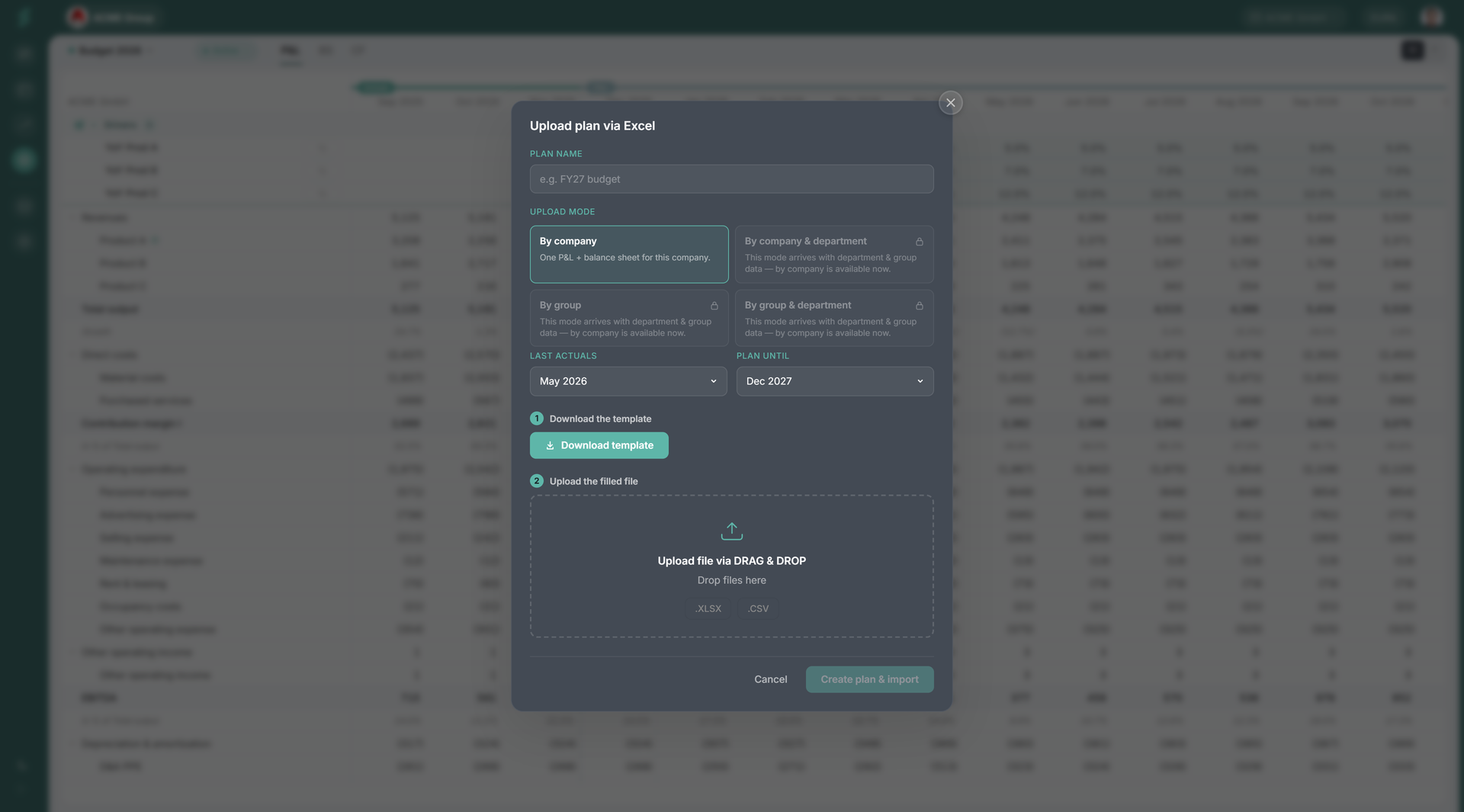
How Plan Import / Export works
Export builds an .xlsx that mirrors your company’s financial statement design: totals, subtotals, locked Level 1 sum rows, and editable Level 2 input rows in blue with monthly columns alongside. Fill the blue cells in Excel. Import reads the file back and applies the new values to the same plan. Locked rows are ignored on import.
Element reference
Modes
- total — one P&L sheet and one Balance Sheet sheet for the whole company. The default.
- by-dept — with the Departments add-on, one P&L sheet per department, truncated at EBITDA (departments don’t carry below-EBITDA lines). One company Balance Sheet sheet at the end.
Sheet naming
- Total:
P&L,Balance Sheet. - By-dept:
{Department}per dept (P&L only), thenBalance Sheet.
Excel caps sheet names at 31 characters. statycs shortens long department names with an ellipsis when needed.
Locked rows
Three Balance Sheet L2 rows stay locked (computed downstream — never user input):
- Cash & equivalents
- Retained earnings
- P&L carryforward
Locked rows render in muted grey with an auto-calculated label. Any value typed into them on import is ignored.
Sum formulas on totals
Every L1, subtotal, and total row is a locked sum of its child L2 rows. Formulas are written column by column so adding a value in any L2 immediately rolls up inside Excel — no need to re-open statycs.
Input cells
L2 input cells are tinted plan-blue (the same blue you see in the in-app planning grid) so it’s obvious where to type. The sheet header carries the currency, the period, and the auto-calculated note.
Period range
Pick a window starting at the plan’s last-actuals month and going forward as far as you need. Total months are capped at 60 to keep the workbook a reasonable size.
Round-trip
- Export: download the .xlsx (file name carries the plan name).
- Edit offline: fill the blue input cells. Locked rows update via Excel formulas as you type.
- Import: re-upload the file. statycs reads back the L2 inputs and applies them to the same plan; locked rows and any unrecognised rows are ignored. Departments and companies are detected from the sheet names.
Validation
statycs validates on import:
- Missing or unknown sheet names → import rejected.
- Sheet structure mismatch (renamed columns, removed rows) → row-level errors surfaced before the values are committed.
- Unparseable cell values (text in a number cell) → reported per cell; everything else still imports.
Locked rows and computed cells are silently dropped on parse — only L2 inputs commit to the plan.
EUR vs EURk
The template displays values in the company’s stored unit. If a column is labelled EURk, type the value as you read it (1500 means 1,500,000 EUR); statycs multiplies back on import. Don’t pre-multiply.