Data Management
The Data section is used to manage financial structures and company data after onboarding.
It separates shared financial structure from company-specific data to ensure consistency across entities.
It is split into:
- Organizational Data — shared financial statement design, Departments matrix, FX rates, journal entry settings
- Company Data — uploads, mappings, and financial values per entity
Organizational Data
Changes made here affect all companies in the organization.
Financial statement design (FSD)
What you do
- Maintain the shared financial statement design
- Ensure consistent Totals, Subtotals, Level 1, and Level 2 positions across entities
Drafts, impact & publishing
- All changes are saved as drafts
- You can review the impact of design changes on financials before publishing
- Click Confirm to apply changes across the organization
Caution
Confirming a financial statement design is not reversible.
Translations
- Positions are stored in the language defined in user settings
- Default positions are translated automatically
- Custom positions not yet translated are marked with 🌍︎
- To translate custom positions, switch the language and adjust the financial statement design
Departments
With the Departments add-on on, the Departments card on Organizational Data exposes the org-departments matrix: rows are org departments, columns are companies, cells hold the raw cost-center chips that route into each org department. Use this card to maintain the cross-company department layout that drives every dept-scoped view in Financials and Planning.
FX rates
When your org uses more than one currency, an FX rates page lists ECB monthly reference rates for every currency in use. The view is read-only:
- Rates are pushed by the backend at every month-end — there is no manual refresh.
- The currency list is auto-derived from the currencies actually in use; there is no add / remove.
- Two parallel rate types are tracked: an average rate (for P&L translation) and a closing rate (for Balance Sheet translation).
- The latest month is highlighted; a synced-on badge tells you when the table was last refreshed.
Journal entries
Where your companies upload journal entries rather than a trial balance, a Journal entries card on Organizational Data holds the settings that govern them. The card is visible to administrators only.
Automatic checks
Checks run after each upload and flag entries that look like posting errors. Flags never change the data, and everyone who can see an entry can see its flags. A master switch turns flagging off for every company in the organization; turning it back on is instant, because the checks are not re-run.
The checks cover possible duplicates, unusually large postings, unusually many postings, a counterparty posting to an account it has never used, a recurring amount that changed or went missing, account totals outside their own history, decimal shifts and transposed digits, and counterparty names that normalize to the same identity. A record threshold controls how far above its own previous high a posting has to go before the record-based checks report it — raise it if they get noisy.
See Automatic checks for what each check looks for.
Confidential positions
Hide journal entries for the positions and accounts you choose. Everyone still sees the totals on the statements; only the underlying entries are hidden, and administrators always see everything.
- Positions apply to every company in the organization
- Accounts are chosen per company, because account numbers differ between companies
- Marking an account also stops its whole position from opening entries; other accounts in that position can still be opened
Caution
This hides entries from the app. It is not a substitute for access control.
See Confidential positions for how this reads to someone without access.
Journal entry column mappings
One mapping per export layout, shared across every company in the organization. When an upload arrives in a layout statycs has not seen, you match its columns once and the mapping is reused from then on.
- Changing a mapping changes what every company in the organization imports
- Editing a mapping affects later uploads only — entries already imported keep the columns they were read with
- Mappings that ship with statycs are read-only; upload your own export to create one you can change
Company Data
Company Data affects only the selected company.
It provides a centralized overview of all companies and their data status.
Company overview
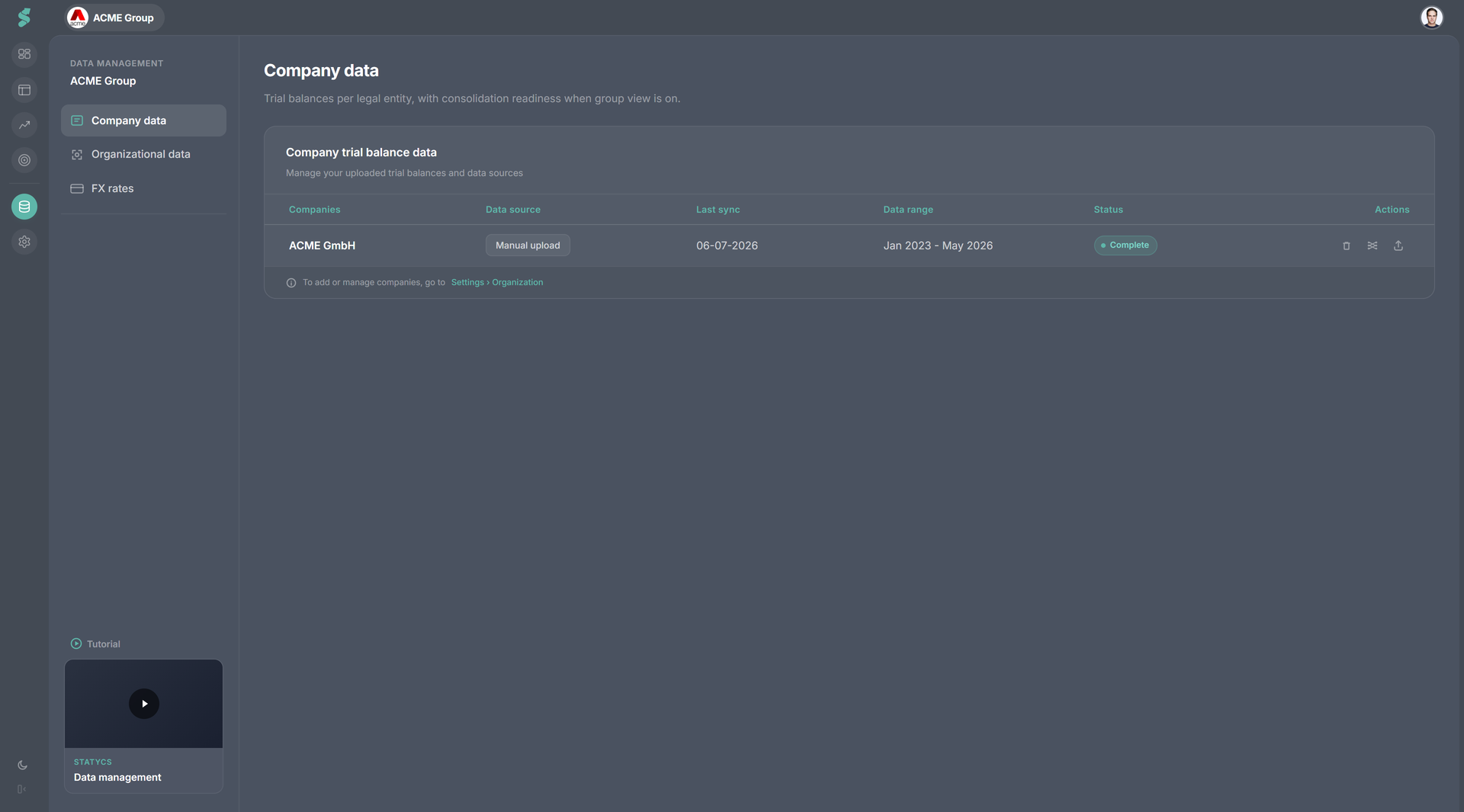
For each company, you can see:
- Last sync — when financial data was last updated
- Uploaded time range — which periods are available
- Mapping status — whether unmapped accounts exist
⚠️ A warning indicator highlights companies with unmapped accounts.
From this overview, you can perform three core actions.
Upload Data
- Upload or sync trial balances or journal entries at any time
- New uploads overwrite existing financial values
- The upload process is identical to onboarding
- Additional input formats and integrations will be added continuously
The company overview names the source each entity is on, so you can see at a glance which companies are on a manual journal upload and which are on a trial balance.
Switching a company between sources
A company is on one source at a time. Uploading the other replaces it, and the derived figures go with it:
- Replacing a trial balance with journal entries deletes the uploaded trial balance and its actuals
- Replacing journal entries with a trial balance deletes the imported journal entries and the actuals derived from them
You are told which of the two you are about to replace, and what will be removed, before anything is written.
Journal uploads specifically
- A general-ledger export is checked first, and you are shown what it will replace before anything is written
- An import covers whole fiscal years: re-importing a year replaces everything already imported for it
- A file that matches no known layout cannot be routed until you match its columns; a file that matches more than one cannot be routed until you narrow the choice to a single mapping
Review before confirm
- You will see the impact of overwritten data before confirming
Caution
Confirming an upload overwrite is not reversible.
Mapping
- Open Mapping to edit account mappings in draft mode
- Same functionality as during onboarding
- Accounts from new uploads are always placed under Non-categorized
- Users must explicitly review and map new accounts
- Use ⚠️ filters to locate unmapped accounts quickly
- Confirm or revert changes to publish them live
With the Departments add-on on, the same mapping screen exposes the Departments popover next to each P&L account so you can attach per-department overrides where the default placement isn’t right.
Delete Data
- Use Delete Data to remove financial values from the last uploaded month onward
- Designed for corrections and re-uploads
Review before confirm
- You will see the impact of deleted data before confirming
Caution
Deleting data is not reversible.
- Financial statement designs are never affected
- Account mappings are only removed if all company data is deleted
Why it matters
- Clear visibility into data health across all companies
- Full transparency before committing irreversible actions
- Full control over uploads, mappings, and financial values per entity
Related
- Onboarding — the first-run flow that ends in Data Management
- Departments — the matrix and per-account overrides
- Notifications — unmapped-account alerts surface here
- Journal entries — the postings behind the figures, for companies on a journal upload